
We provide videos in this course if you prefer to watch them instead of reading the text below. Note that the video uses an older release of FME and some Quiz answers might require you to read the text.
After completing this lesson, you'll be able to:
We provide videos in this course if you prefer to watch them instead of reading the text below. Note that the video uses an older release of FME and some Quiz answers might require you to read the text.
Using the reader parameters to create point geometry works well if you are working with spatial data from the start. This method occurs automatically in certain readers (e.g., CSV, Excel, and text) as long as the attributes are named correctly, such as latitude, longitude, and elevation, or x, y, and z.
Open FME Workbench (2026.1 or later).
Click Blank Workspace to start a new workspace.
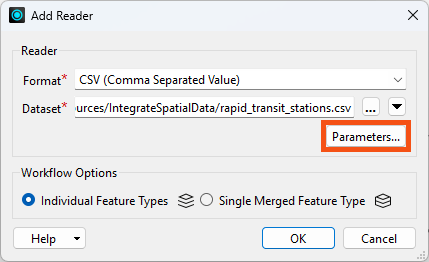
Click Readers > Add Reader and set Format to CSV (Comma-Separated Value). Click the ellipsis button [...] and select the downloaded rapid_transit_stations.csv file or paste in the URL.
Click Parameters:
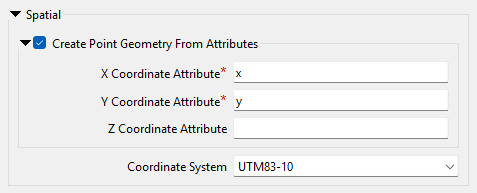
Check Create Point Geometry From Attributes.
Set the Coord. System to UTM83-10.
Your dialog should look like this:
Click OK and then OK again to add the reader.
Run the workspace and view the results in Data Preview:
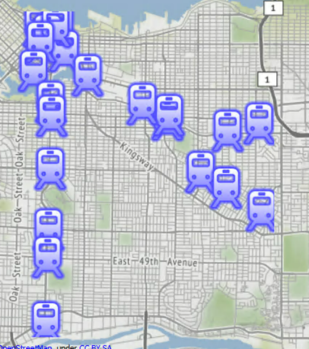
The output of point features using any of the three methods. Stylized in FME Data Inspector using map tiles by Stamen Design, under CC-BY-3.0. Data by OpenStreetMap, under CC-BY-SA.